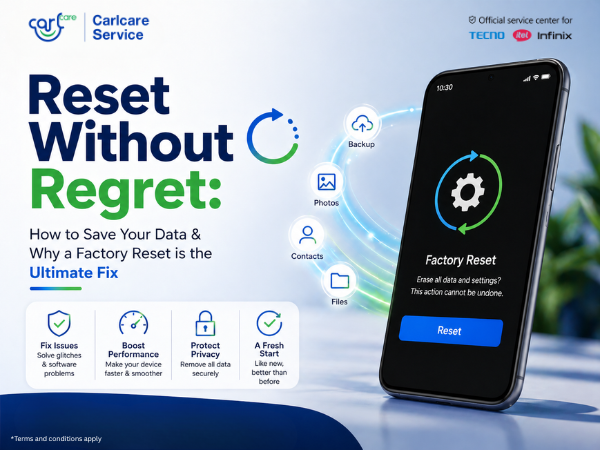
Sometimes, your smartphone just needs a fresh start. Whether your device is lagging, apps are crashing, or you’re preparing to upgrade, a Factory Reset (also known as a "Hard Reset") is the most powerful tool in your settings menu.
However, a reset wipes everything. Here is your 2026 guide on how to back up your life before hitting that button and why this process is actually good for your phone.
🛡️ Why Factory Reset Your Phone?
Many users are afraid to reset, but doing it once a year or after a major OS update can solve a variety of "invisible" problems:
-
Eliminates Software "Bugs": Over time, small errors in app code build up. A reset clears these out, making the phone feel as fast as the day you unboxed it.
-
Fixes Battery Drain: Often, "Ghost Apps" run in the background even after you uninstall them. A reset stops these background processes permanently.
-
Clears System Junk: It removes deep-cache files that standard "cleaner" apps can't reach, freeing up gigabytes of internal storage.
-
Security: It’s the only way to ensure all your personal data is truly gone before selling or handing your phone over to someone else.
📂 How to Save Your Data (The Pre-Reset Checklist)
Don't lose your precious memories. Follow these steps to ensure every bit of data is safe in the cloud or on a PC.
1. Google Account Backup (The Basics)
Go to Settings > Google > Backup. Ensure "Backup by Google One" is toggled on. This saves:
-
Contacts & Call History.
-
Device Settings (Wi-Fi passwords, etc.).
-
App data for supported applications.
2. Media Backup (Photos & Videos)
Open Google Photos, tap your profile icon, and select Photos settings > Backup. Make sure the upload is complete.
-
Pro Tip: For high-quality videos, consider moving them to a physical laptop or an SD card to avoid using up all your cloud storage.
3. WhatsApp & Chat History
Don't forget your conversations! Open WhatsApp, go to Settings > Chats > Chat Backup, and click Back Up. Ensure it's linked to your Google Drive.
4. The "Manual" Sweep
Check your Downloads folder and Documents folder. Often, PDFs, flight tickets, or work files aren't automatically backed up to the cloud. Move these to Google Drive or a USB OTG drive manually.
🛠️ Need Professional Help?
If your phone is so slow that you can't even perform a backup, or if it's stuck in a "Boot Loop," don't panic.
As the Official Service Partner for Infinix, itel, and TECNO, Carlcare technicians can help with professional software flashing and data recovery guidance. If your device is under warranty, we ensure your software is updated to the latest, most stable version using official tools.
📞 Official Support: 1800-4190-525 🌐 Website: www.carlcare.in/in
📜 Final Step: The Reset
Once you are 100% sure your data is safe:
-
Go to Settings > System > Reset options.
-
Select Erase all data (factory reset).
-
Enter your PIN and confirm.
Your phone will now reboot, fresh and fast! Log back into your Google account, and your apps and contacts will begin to download automatically.