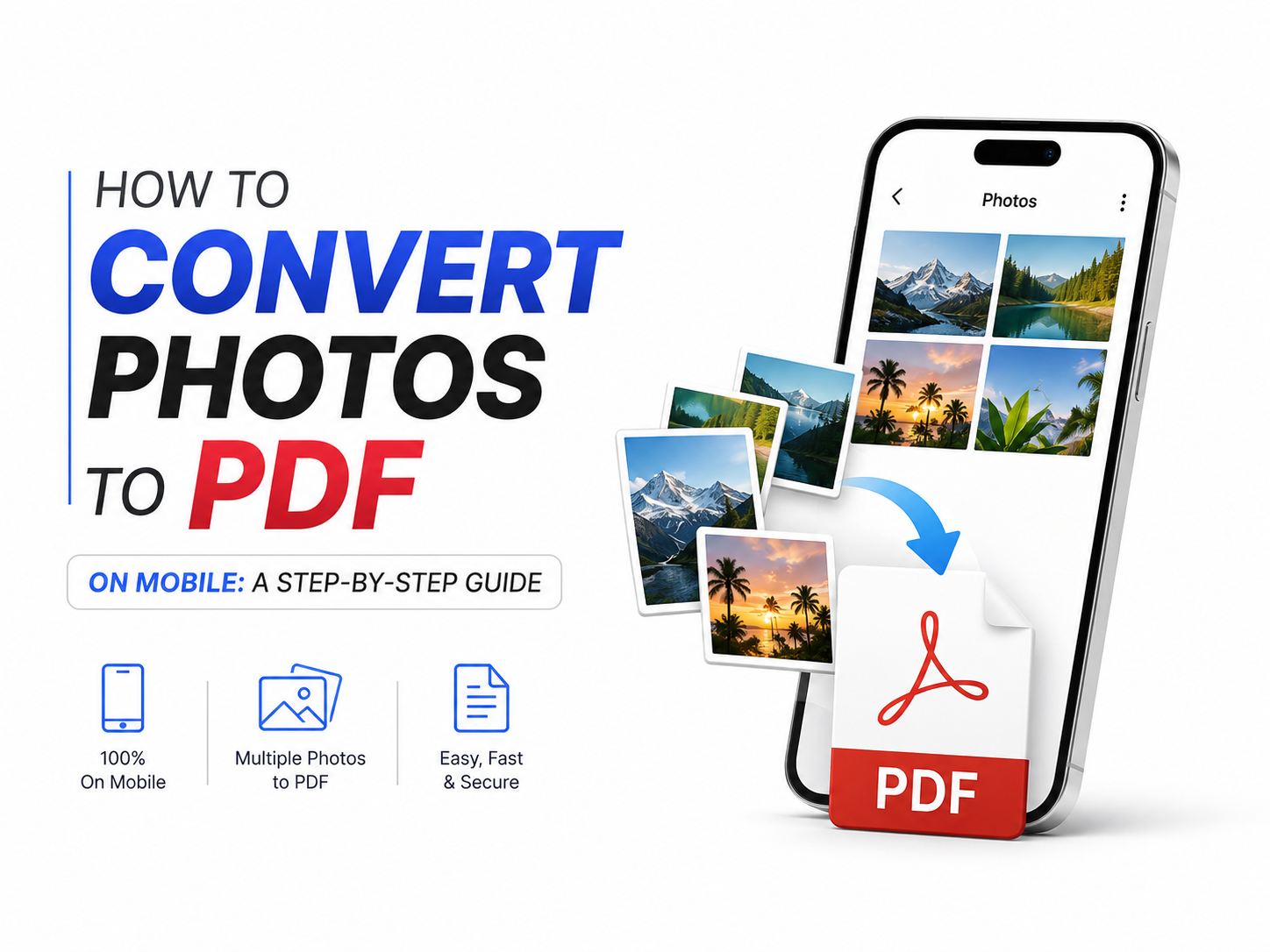
Need to convert photos into a PDF directly from your smartphone? Whether it's scanned documents, ID proofs, receipts, notes, assignments, or business paperwork, creating a PDF from photos has become incredibly easy on Android devices.
The best part is that you don't need a computer. Most smartphones now include built-in tools or support apps that can quickly turn multiple images into a single PDF file.
In this guide, we'll show you different ways to convert photos to PDF on your mobile.
Why Convert Photos to PDF?
PDF files are widely used because they:
- Are easy to share
- Preserve document formatting
- Support multiple pages
- Are accepted for official submissions
- Take up less space than multiple image files
PDFs are commonly used for:
- Job applications
- School assignments
- Government documents
- Invoices and receipts
- Identity verification
Method 1: Convert Photos to PDF Using Google Drive
Many Android phones come with Google Drive pre-installed.
Steps:
- Open Google Drive
- Tap the + (Plus) icon
- Select Scan
- Take a photo of the document
- Adjust the crop if needed
- Add additional pages if required
- Tap Save
Google Drive automatically converts the images into a PDF file.
Method 2: Use Your Phone's Built-in Document Scanner
Many Android smartphones now include a document scanner inside the Camera or Gallery app.
Steps:
- Open the Camera app
- Use Document Scan mode (if available)
- Capture the document
- Save as PDF
This is one of the quickest methods for creating professional-looking PDFs.
Method 3: Convert Photos to PDF Using Google Files
Steps:
- Open Files by Google
- Select the photos you want to convert
- Use the Share option
- Choose Print
- Select Save as PDF
- Save the file
This method works well when you already have photos stored in your gallery.
Method 4: Use Microsoft Lens
Microsoft Lens is a popular document scanning app.
Features:
- Scan documents
- Crop automatically
- Enhance readability
- Export as PDF
Steps:
- Open Microsoft Lens
- Capture or upload photos
- Adjust the document boundaries
- Export as PDF
This is especially useful for notes, forms, and office documents.
Method 5: Convert Multiple Photos into One PDF
If you have several images:
- Open a PDF creator app or document scanner
- Select multiple photos
- Arrange them in the desired order
- Export as a single PDF
This is useful for:
- Assignments
- Contracts
- Multi-page documents
- Bills and receipts
Tips for Better PDF Quality
To create professional-looking PDFs:
Use Good Lighting
Bright and even lighting improves text visibility.
Keep the Camera Steady
Avoid blurry photos.
Use a Plain Background
A clean surface helps document scanners detect edges accurately.
Crop Correctly
Remove unnecessary borders before saving.
Arrange Pages Properly
Check page order before exporting the final PDF.
Common Issues While Creating PDFs
Some users may experience:
PDF File Too Large
Reduce image resolution or compress the PDF.
Blurry Documents
Retake photos in better lighting conditions.
Missing Pages
Verify all pages before saving.
PDF Not Opening
Update your PDF reader app or use a different PDF viewer.
Best Uses for Mobile PDF Conversion
You can convert photos into PDFs for:
- Aadhaar and PAN card copies
- School assignments
- Office documents
- Utility bills
- Medical reports
- Receipts and invoices
- Application forms
Having documents in PDF format makes them easier to store, upload, and share.
Need Smartphone Support?
If you're facing issues such as:
- Camera not working properly
- Storage full errors
- PDF apps crashing
- Slow phone performance
- Software-related problems
Carlcare Service can help with professional smartphone support and troubleshooting.
📞 Contact Us: 1800-4190-525
📍 Find a Service Center:
https://www.carlcare.in/in/service-center/
📅 Book a Repair:
https://www.carlcare.in/in/repair-appointment/
T&C Apply