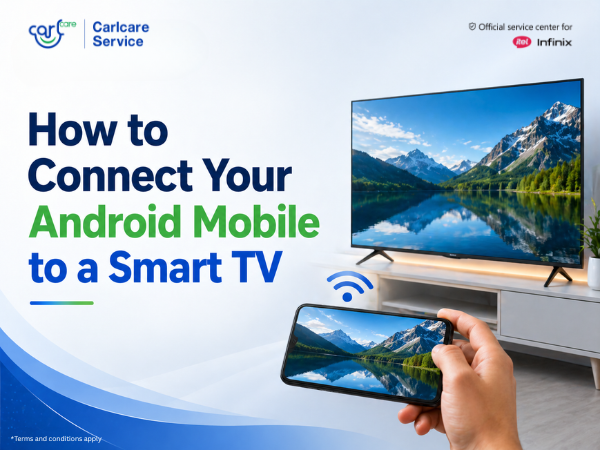
Watching a blockbuster movie or scrolling through your vacation photos is always better on a 55-inch display than a 6-inch screen. If you have an Infinix or itel Smart TV (or any Android-based TV), connecting your phone is simpler than ever in 2026.
Here is your complete guide to screen casting, mirroring your gallery, and using your TV like a pro.
📡 Method 1: The "Screen Cast" (Mirror Everything)
This is the best way to show exactly what is on your phone screen—perfect for social media scrolling or showing a presentation.
-
Same Wi-Fi: Ensure your Android phone and your Smart TV are connected to the same Wi-Fi network.
-
Quick Settings: Swipe down from the top of your phone screen to open the Quick Settings panel.
-
Find the Icon: Look for an icon labeled Cast, Screen Cast, or Smart View (on Samsung devices).
-
Select Your TV: Your TV’s name (e.g., Infinix-X1-TV or itel-Smart-TV) will appear. Tap it.
-
Start Now: Grant permission on your phone, and your mobile screen will instantly mirror onto the TV.
🖼️ Method 2: Casting Your Gallery (Photos & Videos)
If you only want to show specific photos or videos without revealing your entire phone's home screen or private notifications, use the Cast feature inside apps.
-
Google Photos: Open a photo or video, look for the Cast icon (a rectangle with Wi-Fi bars in the corner) at the top, and select your TV.
-
Direct Gallery Play: Many Infinix and itel phones have a "Cast" button built directly into the default gallery app. When you open a photo, look for a "Play on TV" or "Cast" option in the menu.
📱 Method 3: Using the Google Home App (Universal)
If your phone doesn't have a built-in "Cast" button in the settings, the Google Home app is your best friend.
-
Download the Google Home app from the Play Store.
-
Tap on your TV’s name in the device list.
-
Tap "Cast my screen" at the bottom. This works perfectly for all Chromecast-enabled TVs, including the latest Infinix and itel models.
🚀 Method 4: Best Apps for Infinix & itel TVs
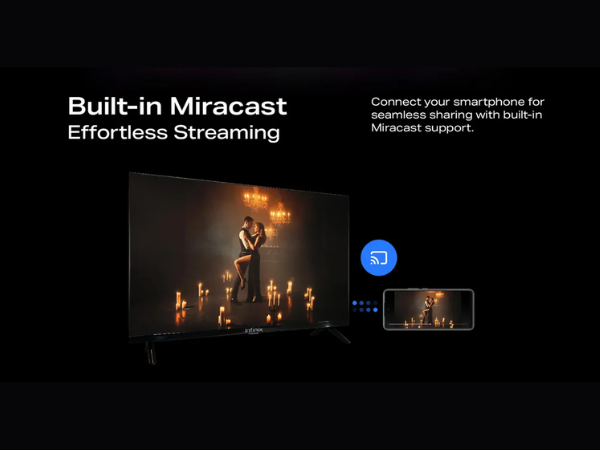
Specific TVs often come with pre-installed "Server" apps that make the connection even smoother:
-
EShare: Many itel and Infinix TVs use the EShare ecosystem. Download the EShare client on your phone. It allows you to:
-
Mirror your screen.
-
Use your phone as a TV Remote.
-
Stream local music and videos with zero lag.
-
-
Miracast: If you don't have Wi-Fi, some TVs allow a direct Miracast connection (peer-to-peer), though Wi-Fi is generally more stable.
🛠️ Troubleshooting: Why won't my TV connect?
-
2.4GHz vs 5GHz: If your router has two bands, make sure both devices are on the exact same one.
-
Power Saving Mode: Turn off "Battery Saver" on your phone, as it often kills the wireless casting process to save energy.
-
Update System: Ensure your itel or Infinix TV is running the latest firmware. Go to Settings > Device Preferences > About > System Update.
🛡️ Need Expert Tech Support?
If your TV's Wi-Fi module is acting up or you're seeing a "No Device Found" error despite trying everything, it might be a hardware glitch.
As the Official Service Partner for Infinix and itel, Carlcare is here to help. Whether you need a software flash or a hardware repair, our experts ensure your big-screen experience remains uninterrupted.
📞 Official Support: 1800-4190-525 🌐 Book a Service: www.carlcare.in/in