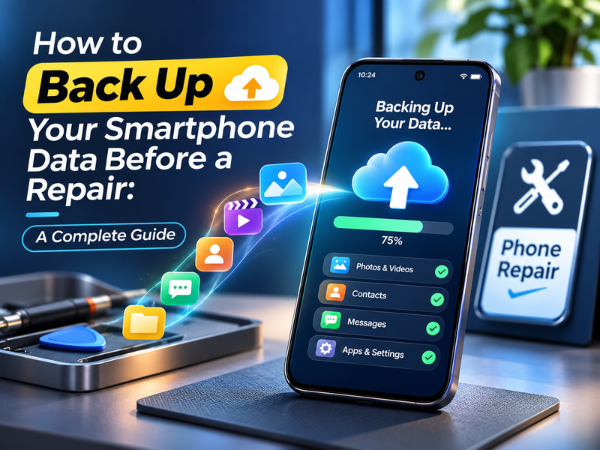
Planning to give your smartphone for repair? Whether you are dealing with a broken display, charging issue, battery problem or software malfunction, there is one important step you should never skip: backing up your smartphone data.
Your phone stores a lot more than just contacts and photos. It may contain important documents, WhatsApp conversations, videos, downloaded files, notes, app data and personal information.
During certain repairs, particularly software troubleshooting, motherboard repairs or factory resets, your phone's data may be erased. That's why creating a backup before handing over your smartphone is essential.
In this guide, we'll explain how to back up your Android smartphone data, including photos, contacts, WhatsApp chats, documents and other important files, before visiting a service centre.
Why Should You Back Up Your Phone Before a Repair?
Smartphone repairs do not always involve data deletion. However, some repair procedures may require software restoration, device resetting or storage-related operations that can result in data loss.
Here are some reasons why backing up your data is important:
- Protect important photos and videos: Keep your personal memories safe.
- Save contacts: Avoid losing important phone numbers and contact details.
- Preserve WhatsApp conversations: Keep important chats and media available for restoration.
- Protect documents: Save work files, PDFs, downloaded documents and other essential information.
- Avoid unexpected data loss: Stay prepared if a repair requires a factory reset or software-related procedure.
- Make phone restoration easier: Recover your important information when you start using your phone again.
1. Back Up Your Android Phone Using Google
Google provides backup options for many Android smartphones. Depending on your device and settings, you may be able to back up app data, call history, contacts, device settings and SMS messages.
Steps to back up your Android phone:
- Open Settings.
- Go to Google or Google Services.
- Select Backup.
- Turn on the available backup options.
- Tap Back up now, if available.
- Wait for the backup process to complete.
You can check the backup status and the last backup time in the same section.
Important: The available backup categories depend on your device, Android version and Google account settings. Not every app or file is automatically included.
2. Back Up Photos and Videos to Google Photos
Photos and videos often occupy a large amount of smartphone storage. Backing them up separately helps ensure that your important memories remain accessible.
Steps to back up photos and videos:
- Open the Google Photos app.
- Sign in using your Google account.
- Tap your profile picture.
- Open Photos settings and select Backup.
- Turn on Backup.
- Wait until the app confirms that the backup is complete.
You can also check whether additional device folders, such as screenshots and downloaded images, need to be included.
Tip: Check your available Google account storage before starting. A backup may remain incomplete if you run out of storage space.
3. Back Up Your WhatsApp Chats
WhatsApp conversations can contain important personal and professional information. Before sending your phone for repair, create a separate WhatsApp backup.
Steps to back up WhatsApp chats on Android:
- Open WhatsApp.
- Tap the three-dot menu.
- Go to Settings.
- Select Chats.
- Tap Chat backup.
- Choose your Google account.
- Select your backup preferences.
- Tap Back up.
Wait until the backup finishes before proceeding.
Important: If you have enabled end-to-end encrypted backups, make sure you securely retain the password or encryption key. Without it, you may not be able to restore that backup.
4. Save Your Contacts
If your contacts are saved to your Google account, they may already be synchronised. However, it is a good idea to verify this before submitting your phone for repair.
Steps to check contact synchronisation:
- Open Settings.
- Go to Passwords and Accounts or Accounts.
- Select your Google account.
- Open Account Sync.
- Check whether Contacts synchronisation is enabled.
- Allow synchronisation to complete.
You can also export your contacts as a VCF file through your Contacts app, if the option is available.
This gives you another copy that you can store securely.
5. Back Up Important Documents and Downloaded Files
Your Downloads folder may contain invoices, certificates, office documents, PDFs and other important files.
These files may not be included in your regular phone backup.
Steps to back up documents:
- Open the Files or File Manager app.
- Check folders such as Downloads, Documents and Bluetooth.
- Select the important files.
- Upload them to Google Drive or another trusted cloud storage service.
- Alternatively, transfer them to a computer or external storage device.
- Open a few transferred files to confirm that they are accessible.
Do not assume that every file stored on your phone will automatically be backed up.
6. Transfer Your Data to a Computer or External Storage
Cloud backup is convenient, but you can also create an offline copy of your important files.
This is useful when you have limited internet access or a large amount of data to save.
Steps to transfer files to a computer:
- Connect your smartphone to a computer using a USB cable.
- Unlock your phone.
- Select File Transfer when the USB connection options appear.
- Open your phone's storage on the computer.
- Copy important photos, videos, documents and other files.
- Save them in a separate folder on your computer.
- Open some of the copied files to verify the transfer.
You can also use a compatible external storage device to keep an additional copy.
7. Back Up Data Using Your Smartphone Brand's Tools
Some smartphone manufacturers offer their own backup and data-transfer applications.
Depending on your device, these tools may help you transfer contacts, photos, messages, settings and other supported information.
Before using a brand-specific tool, check its official instructions and confirm which data categories it supports.
Remember that transferring data to another device and creating a recoverable backup are not always the same thing.
What Should You Check Before Handing Over Your Phone for Repair?
Creating a backup is important, but there are a few additional precautions you should take before visiting a service centre.
- Verify your backup: Make sure the backup process has finished successfully.
- Check important files: Open selected photos, videos and documents from your backup location.
- Remember your account credentials: Keep your Google account login details and other necessary credentials secure.
- Remove your SIM card: Take out your SIM card before submitting the device, unless the service process specifically requires otherwise.
- Remove your memory card: If your phone has a removable microSD card, remove it unless it is required for diagnosis.
- Protect personal information: Follow the service centre's instructions for securing your data and device.
- Inform the technician: Clearly explain the problem and mention any important data-related concerns.
Should You Factory Reset Your Phone Before Repair?
Not necessarily.
A factory reset permanently removes locally stored user data from the device, so it should not be performed before creating and verifying a backup.
Some repairs may require a factory reset, while others may not. Follow the authorised service centre's instructions.
If a repair requires you to remove personal data or reset your device, make sure your backup is complete first.
Smartphone Repair Data Backup Checklist
Use this checklist before submitting your smartphone for repair.
- Google or device backup completed.
- Photos and videos backed up.
- WhatsApp chats backed up.
- Contacts synchronised or exported.
- Important documents and downloads saved.
- Important files verified.
- Google account credentials available.
- SIM card removed, where applicable.
- Memory card removed, where applicable.
- Repair issue and data-related concerns explained to the technician.
Frequently Asked Questions
1. Will I lose my data when I give my phone for repair?
Not necessarily. Many repairs do not require data deletion. However, certain software, motherboard or storage-related procedures may involve resetting or erasing the device. Always create a backup before submitting your smartphone.
2. How can I back up my entire Android phone?
You can use the Google backup option available in your phone's settings. For additional protection, separately back up photos, WhatsApp chats, contacts and important documents.
3. Can I back up my phone without Wi-Fi?
Yes. You can transfer files directly to a computer using a USB cable or use compatible external storage. Cloud backups generally require an internet connection.
4. Will WhatsApp chats be restored after phone repair?
They can be restored if a compatible WhatsApp backup was successfully created and you use the required phone number and Google account. Encrypted backups also require the correct password or encryption key.
5. Should I remove my SIM card before giving my phone for repair?
It is generally a good idea to remove your SIM card before submitting your phone. Follow the service centre's instructions if the SIM is required for a specific network-related diagnosis.
6. Is Google Photos enough to back up my entire smartphone?
No. Google Photos primarily backs up supported photos and videos. Contacts, WhatsApp chats, documents, application data and other information may require separate backup methods.
7. Can a service centre access my personal data?
Some diagnostic or repair procedures may require access to certain device functions or settings. Ask the service centre about its data-handling process and follow its security instructions. Never share your passwords, OTPs or account recovery codes unnecessarily.
Conclusion
Your smartphone may be repaired, but losing important photos, contacts, documents or conversations can create an entirely different problem.
That's why backing up your smartphone data should always be part of your pre-repair preparation. Use Google Backup, Google Photos, WhatsApp Backup and offline file transfers to protect the information that matters to you.
Most importantly, verify your backup before handing over your device. A few minutes of preparation can save you from unnecessary stress later.
Need Smartphone Repair Assistance?
If your TECNO, Infinix or itel smartphone needs professional repair, visit an authorised Carlcare Service Centre.
Carlcare Toll-Free: 1800-4190-525
Find an Authorised Service Centre: https://www.carlcare.in/in/service-center/
Book a Repair: https://www.carlcare.in/in/repair-appointment/
Carlcare – Your Trusted After-Sales Service Partner for TECNO, Infinix and itel in India.