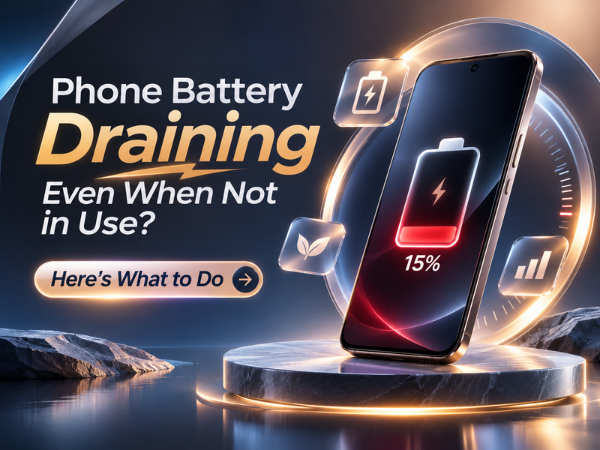
Have you ever charged your smartphone to 100% before going to bed, only to find its battery significantly reduced the next morning? If your phone battery keeps draining even when you're not using it, you're not alone.
Many smartphone users experience battery drain while their devices are idle. Even when your screen is switched off, several background processes may continue running, including app updates, notifications, location services, network connections and system activities.
But how do you identify what's consuming your battery, and what can you do to prevent it?
Let's understand the common reasons behind battery drain when your phone is not in use and explore some practical solutions.
Why Does Your Phone Battery Drain When Not in Use?
Your smartphone doesn't completely stop working when you lock its screen. Several functions continue operating in the background, which can gradually consume battery power.
Here are some common reasons.
1. Apps Running in the Background
Some applications continue working even when you are not actively using them.
Social media applications, messaging platforms, email services and streaming apps may refresh content, sync information or send notifications in the background.
If multiple applications are doing this simultaneously, they can contribute to unnecessary battery consumption.
What to do:
- Open your phone's Settings.
- Go to Battery or Battery Usage.
- Check which applications are consuming the most power.
- Restrict background activity for applications that don't need constant updates.
- Close unnecessary applications if they are consuming excessive resources.
2. Location Services Are Always Turned On
GPS and location services can contribute to battery consumption, particularly when applications frequently request your location.
Navigation, weather, shopping and social media applications may access location information even when you're not actively using them, depending on their permissions.
What to do:
- Open Settings on your smartphone.
- Go to Location or App Permissions.
- Review which applications have location access.
- Change unnecessary permissions to "Allow only while using the app."
- Turn off location services when you don't need them.
Avoid disabling location access for applications that genuinely require it for safety or essential functionality.
3. Poor Network Signal or Continuous Network Searching
One commonly overlooked reason for battery drain is a weak mobile network signal.
When your smartphone is in an area with poor network coverage, it may use additional power while attempting to maintain or establish a connection.
This can happen when you are inside buildings, underground parking areas or remote locations.
What to do:
- Move to an area with better network coverage.
- Use Wi-Fi calling if supported by your operator and device.
- Turn on Airplane Mode when you are in an area with no network coverage and don't need mobile connectivity.
- Check whether your SIM card or network connection is working properly.
4. Wi-Fi, Bluetooth and Mobile Data Remain Active
Wireless connections allow your phone to stay connected to other devices and networks. However, continuous network activity can contribute to battery usage.
Wi-Fi, Bluetooth, mobile data and hotspot services may continue operating even when your phone is not being used.
What to do:
- Turn off your mobile hotspot when not required.
- Disable Bluetooth when you are not using wireless accessories.
- Disconnect from unnecessary Wi-Fi networks.
- Review mobile data activity and background data permissions.
You don't need to switch off every connection every time you lock your phone. Focus on services that are unnecessarily active.
5. Push Notifications and Automatic Synchronisation
Your smartphone regularly communicates with applications to receive messages, emails, reminders and updates.
Frequent notifications can wake the screen, activate network connections and trigger background activity.
Automatic synchronisation can also consume power while updating contacts, photos, emails and other information.
What to do:
- Disable unnecessary app notifications.
- Reduce automatic synchronisation for services you rarely use.
- Review background data permissions.
- Keep notifications enabled for important applications.
6. Outdated Software or Applications
An outdated application or operating system may sometimes contain bugs that cause unusual battery consumption.
Similarly, an application update may occasionally introduce background activity that affects battery performance.
What to do:
- Check for available system updates.
- Update applications through the official app store.
- Restart your smartphone after major updates.
- Monitor battery usage to identify applications consuming excessive power.
7. Battery Age and Battery Health
Smartphone batteries gradually lose their ability to hold a charge over time.
As a lithium-ion battery ages, its capacity can decrease. This means your phone may lose charge faster than it did when it was new.
If your smartphone is several years old and battery drain has become increasingly noticeable, battery ageing could be one of the reasons.
What to do:
- Monitor your battery performance.
- Check battery health if your smartphone supports this feature.
- Avoid exposing your phone to excessive heat.
- Visit an authorised service centre if the battery drains unusually fast despite troubleshooting.
8. Always-On Display and Background Screen Features
Some smartphones offer Always-On Display, which keeps selected information visible even when the main screen is locked.
Features such as live wallpapers, screen animations and certain lock-screen notifications may also contribute to battery consumption.
What to do:
- Disable Always-On Display if you don't need it.
- Use a simpler wallpaper.
- Reduce unnecessary screen animations.
- Review lock-screen notification settings.
How to Check Which App Is Draining Your Battery
If you want to identify the exact reason for battery drain, start by checking your smartphone's battery usage statistics.
Follow these steps on most Android smartphones:
- Open Settings.
- Select Battery or Battery and Device Care, depending on your device.
- Tap Battery Usage.
- Review the list of applications and their battery consumption.
- Identify applications showing unusually high usage.
- Restrict background activity or uninstall applications you no longer need.
The names and locations of these settings may differ depending on your Android version and smartphone manufacturer.
10 Practical Tips to Stop Your Phone Battery From Draining Overnight
If your phone loses too much battery while you sleep, try these simple habits.
- Enable Battery Saver: Use your phone's battery-saving mode to limit certain background activities.
- Reduce Unnecessary Notifications: Turn off notifications from applications you rarely use.
- Restrict Background Apps: Prevent unnecessary applications from refreshing continuously.
- Turn Off Mobile Hotspot: Avoid leaving hotspot services enabled when not required.
- Manage Location Permissions: Allow location access only to applications that need it.
- Use Wi-Fi When Available: A stable Wi-Fi connection may help reduce power consumption compared with maintaining a weak mobile signal.
- Reduce Screen Brightness: Lower brightness and disable unnecessary display features.
- Update Your Applications: Install updates to benefit from bug fixes and performance improvements.
- Restart Your Smartphone: A simple restart can sometimes resolve temporary software or background-process issues.
- Monitor Battery Usage: Regularly check which applications consume the most power.
How Much Battery Drain Is Normal Overnight?
A small amount of battery drain while your phone is idle is normal because the device continues performing essential background activities.
However, if your battery percentage drops significantly overnight on a regular basis, it may indicate an underlying issue.
For example, if your phone loses 15–20% battery while you are sleeping, it is worth investigating the cause rather than assuming it is normal.
There is no universal overnight battery-drain limit because performance depends on battery age, network signal, applications, device settings and background activity.
Try monitoring battery usage over a few nights after applying the recommended changes.
When Should You Visit a Smartphone Service Centre?
Sometimes, battery drain is not caused by applications or settings. It may be related to battery deterioration, charging components or other internal hardware issues.
Consider professional assistance if you notice:
- Battery percentage dropping unusually quickly despite basic troubleshooting.
- Smartphone switching off unexpectedly.
- Battery draining even after a factory reset and software checks.
- Excessive heating when the phone is idle.
- Battery swelling or physical deformation.
- Charging problems or inconsistent battery percentage readings.
Important: If your phone's battery appears swollen, stop using and charging the device. Do not press, puncture or attempt to remove the battery yourself. Contact an authorised service professional.
Frequently Asked Questions
1. Why does my phone battery drain overnight even when I am not using it?
Background applications, mobile network activity, location services, notifications, automatic synchronisation and battery ageing can all contribute to overnight battery drain.
2. How do I stop my Android phone from losing battery when idle?
Check battery usage, restrict unnecessary background applications, manage location permissions, disable unused connectivity features and enable Battery Saver when required.
3. Does keeping mobile data on drain the battery?
Mobile data can consume battery power, particularly when applications frequently use the internet or when network coverage is weak. Actual consumption depends on your usage and network conditions.
4. Does Bluetooth drain battery when not connected?
Bluetooth generally consumes relatively little power when idle, but its impact can vary depending on connected devices and background activity. Turn it off if you don't need it.
5. Why does my phone battery drain even in Airplane Mode?
Some background activities continue in Airplane Mode, including certain scheduled tasks and application processes. An ageing battery or software issue may also contribute to power loss.
6. Does Battery Saver mode really help?
Yes. Battery Saver can reduce background activity, synchronisation and certain system functions to help extend battery life.
7. How do I know if my smartphone battery needs replacement?
Frequent unexpected shutdowns, unusually fast battery drain, reduced battery capacity and physical swelling can indicate a battery problem. A professional inspection can help determine whether replacement is necessary.
8. Should I charge my phone every night?
You can charge your smartphone overnight if you use a properly functioning charger and the device's supported charging protections. Avoid charging a phone that shows signs of battery swelling or overheating.
Conclusion
A smartphone battery draining even when the device is not in use can be frustrating, especially when you expect it to last throughout the day.
Fortunately, the problem is often related to background applications, network activity, location permissions or unnecessary system features. Reviewing battery usage and making a few adjustments can help improve battery performance.
However, if your phone continues losing charge unusually quickly despite trying these solutions, the issue may require professional attention.
Take care of your smartphone battery, monitor its performance and get expert assistance whenever necessary.
Need Professional Smartphone Assistance?
If your TECNO, Infinix or itel smartphone continues experiencing battery drain, overheating or charging problems, visit an authorised Carlcare Service Centre for assistance.
📞 Carlcare Toll-Free: 1800-4190-525
📍 Find an Authorised Service Centre: https://www.carlcare.in/in/service-center/
📅 Book a Repair: https://www.carlcare.in/in/repair-appointment/
Carlcare – Your Trusted After-Sales Service Partner for TECNO, Infinix and itel.