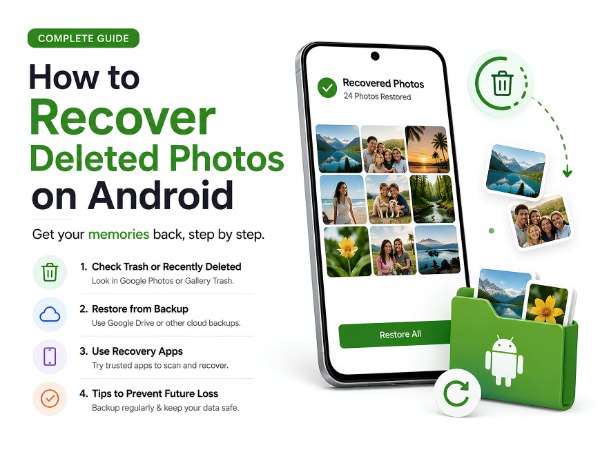
Accidentally deleted your favorite photos? Don't panic. Whether it's a family picture, vacation memory, important document image, or screenshot, there are several ways to recover deleted photos on Android devices.
The sooner you act, the better your chances of recovery. In this guide, we'll explain the most effective methods to recover deleted photos on Android smartphones.
Can Deleted Photos Be Recovered?
Yes, in many cases deleted photos can be recovered, especially if they were recently deleted.
Most Android phones don't permanently erase photos immediately. Instead, deleted images are usually moved to a Trash, Recycle Bin, or Recently Deleted folder for a limited period before being permanently removed.
Method 1: Check Google Photos Trash
If you use Google Photos backup, your deleted photos may still be available in the Trash folder.
Steps:
- Open Google Photos
- Tap Collections or Library
- Select Trash or Bin
- Browse deleted photos
- Select the photos you want to restore
- Tap Restore
Google Photos typically keeps deleted photos in Trash for up to 60 days before permanent deletion.
Method 2: Check Your Phone's Gallery Recycle Bin
Many Android smartphones include a built-in recycle bin inside the Gallery app.
Steps:
- Open Gallery
- Go to Albums
- Look for:
- Recently Deleted
- Recycle Bin
- Trash
- Select the photos
- Tap Restore
This is often the fastest recovery method.
Method 3: Restore Photos from Cloud Backup
If you have cloud backup enabled, you may be able to recover deleted images.
Common backup services include:
- Google Photos
- Google Drive
- OneDrive
- Dropbox
Check your backup service to see whether the deleted images are still stored online.
Method 4: Recover Photos from SD Card
If your photos were stored on a memory card, recovery may be possible using data recovery software.
Common recovery tools include:
- DiskDigger
- EaseUS Data Recovery
- Recoverit
Important Tip:
Stop using the SD card immediately after deletion. New files can overwrite deleted data and reduce recovery chances.
Method 5: Check Messaging & Social Media Apps
Sometimes photos remain available in apps where they were shared.
Check:
- Telegram
- Facebook Messenger
- Email attachments
You may find copies of the deleted photos there.
What to Do Immediately After Deleting Photos
To improve recovery chances:
✔ Stop taking new photos
✔ Avoid downloading files
✔ Do not install unnecessary apps
✔ Check backup services quickly
The more you use the phone after deletion, the higher the risk of overwriting recoverable data.
Can Permanently Deleted Photos Be Recovered?
Recovery becomes much more difficult if:
- Trash folder has been emptied
- Photos were permanently deleted long ago
- Storage space has been overwritten
In some cases, professional data recovery tools may help, but recovery cannot be guaranteed.
How to Prevent Photo Loss in the Future
To avoid losing important memories:
Enable Google Photos Backup
Automatically save photos to the cloud.
Use Cloud Storage
Services like Google Drive and OneDrive provide additional backup options.
Transfer Photos Regularly
Move important images to a computer or external drive.
Keep Storage Organized
Avoid accidental deletion by regularly organizing albums and folders.
Common Reasons Photos Disappear
Photos may disappear due to:
- Accidental deletion
- Factory reset
- Software updates
- Storage corruption
- SD card issues
- Malware or app conflicts
If photos disappear unexpectedly, it's worth checking your device's storage and backup settings.
Need Help with Your Android Smartphone?
If your phone is experiencing:
- Gallery not showing photos
- SD card errors
- Storage issues
- Software problems
- Data access issues
Carlcare Service can help diagnose and resolve device-related issues.
📞 Contact Us: 1800-4190-525
📍 Find a Service Center:
https://www.carlcare.in/in/service-center/
📅 Book a Repair:
https://www.carlcare.in/in/repair-appointment/
T&C Apply