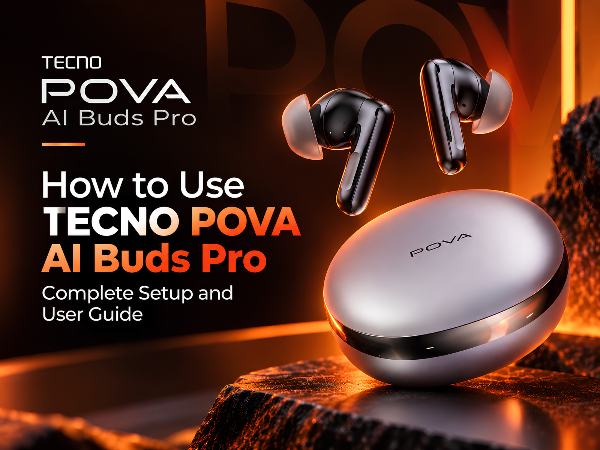
Got your new TECNO POVA AI Buds Pro? These wireless earbuds offer more than just music and calling. With AI-powered features, noise cancellation and smart connectivity, they are designed to make everyday listening and communication more convenient.
If you're wondering how to connect your POVA AI Buds Pro to your smartphone, use their AI features or manage settings, this guide will help you get started.
Step 1: Charge Your POVA AI Buds Pro
Before using your earbuds for the first time, make sure they have sufficient battery.
- Place both earbuds inside the charging case.
- Connect the case to a power source using a compatible USB Type-C cable.
- Allow the earbuds and charging case to charge.
- Once charged, open the case to begin setting up your earbuds.
Step 2: Connect POVA AI Buds Pro to Your Smartphone
Follow these steps to connect your earbuds through Bluetooth.
- Turn on Bluetooth in your smartphone's settings.
- Open the POVA AI Buds Pro charging case with the earbuds inside.
- Look for POVA AI Buds Pro in the available Bluetooth devices.
- Tap the device name to connect.
- Once paired, play some audio to check that the earbuds are working.
If the earbuds do not appear, refer to the pairing instructions in the product manual to activate pairing mode.
Step 3: Download the POVA Companion App
To access supported smart features and settings, install the companion app using the provided Google Play link.
Download the app: https://play.google.com/store/apps/details?id=com.transsion.vi.pova
After installation:
- Open the app on your smartphone.
- Allow the necessary Bluetooth and device permissions.
- Follow the on-screen instructions to connect your earbuds.
- Explore the available features and settings.
The exact options may vary depending on the app version and connected device.
Step 4: Explore the AI Features
The POVA AI Buds Pro includes AI-powered features designed to help with productivity and communication.
AI Recording and Quick Notes
Use the supported recording feature to capture important information from meetings, lectures or conversations. Follow the instructions in the companion app to access recordings and related features. Always obtain permission when recording other people.
AI Transcription and Meeting Summaries
Where supported, AI transcription can convert recorded speech into text. Meeting summaries can help you review important discussion points without listening to an entire recording again.
AI Translation
The earbuds also offer AI-assisted translation features. Open the relevant option in the companion app and follow the on-screen instructions to select the supported language and translation mode.
Step 5: Use Active Noise Cancellation
The POVA AI Buds Pro features hybrid Active Noise Cancellation (ANC), which can help reduce surrounding noise.
To manage ANC, check the available noise-control options in the companion app or the supported earbud controls.
For better results, wear the earbuds securely and select ear tips that fit comfortably.
Step 6: Make Calls and Listen to Music
Once connected, you can use the earbuds for everyday audio activities, including:
- Listening to music, podcasts and videos.
- Making and receiving phone calls.
- Attending online meetings.
- Using supported voice and audio features.
Check the product instructions or companion app for the available touch gestures, button functions and customisation options.
Step 7: Connect and Switch Between Devices
The POVA AI Buds Pro supports dual-device connectivity, which can make switching between compatible devices more convenient.
To configure this feature, look for the dual-device or connection management settings in the companion app and follow the available instructions.
The exact connection procedure may depend on the devices and app version.
Step 8: Keep Your Earbuds in Good Condition
A few simple habits can help you maintain your earbuds.
- Store them in the charging case when not in use.
- Keep the charging contacts clean and dry.
- Clean the ear tips regularly using appropriate methods.
- Avoid exposing the earbuds to excessive moisture or heat.
- Check the companion app for available firmware updates.
- Avoid using sharp objects or excessive force when cleaning the earbuds.
Frequently Asked Questions
How do I connect TECNO POVA AI Buds Pro to my phone?
Enable Bluetooth, open the charging case and select POVA AI Buds Pro from the available devices. If the earbuds are not visible, follow the manual's instructions to enter pairing mode.
Which app should I use for POVA AI Buds Pro?
Use the companion app linked for the product on Google Play: https://play.google.com/store/apps/details?id=com.transsion.vi.pova
How do I use the AI features?
Connect the earbuds to the companion app, open the available AI feature and follow the on-screen instructions. Supported features may include recording, transcription, meeting summaries and translation.
How do I turn on noise cancellation?
Check the noise-control settings in the companion app or the supported controls on the earbuds. Refer to the product manual for the exact control method.
What should I do if my earbuds are not connecting?
Check that Bluetooth is enabled, the earbuds are charged and they are not actively connected to another device. If necessary, follow the official manual's pairing or reset instructions.
Watch the Video: How to Use TECNO POVA AI Buds Pro
For a visual walkthrough of the setup process, Bluetooth pairing, companion app and supported features, watch our step-by-step tutorial below.
Explore the official product: https://www.tecno-mobile.in/accessories/product-detail/product/pova-ai-buds-pro/
Download the companion app: https://play.google.com/store/apps/details?id=com.transsion.vi.pova