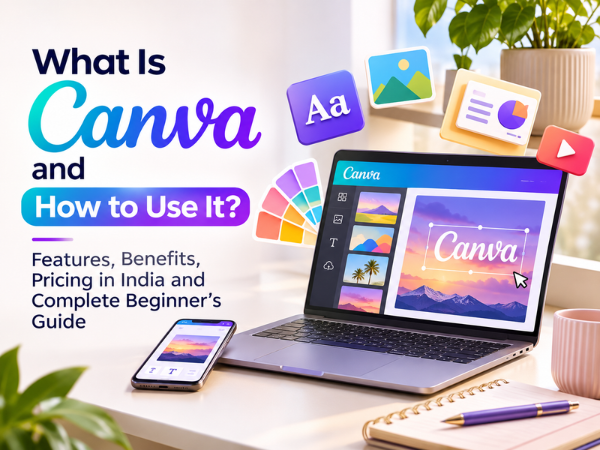
Want to create professional-looking social media posts, presentations, videos, posters or business designs without learning complicated graphic design software? Canva is one of the most accessible design platforms that can help you do all this from a single place.
Whether you are a student, content creator, business owner, digital marketer or someone who simply enjoys creating designs, Canva offers ready-made templates and easy-to-use editing tools to turn your ideas into visual content.
But what exactly is Canva? How do you use it? Is Canva free, and is Canva Pro worth paying for?
Let's explore everything you need to know about Canva, including its features, practical uses, pricing in India and tips for beginners.
What Is Canva?
Canva is an online graphic design and visual communication platform that allows users to create different types of digital and printable content.
Unlike traditional graphic design software that may require advanced technical knowledge, Canva uses a drag-and-drop editor. Users can select a template, add text, upload images, change colours, insert graphics and customise their designs.
You can use Canva through its website or mobile application, making it convenient to create and edit designs from different devices.
Official website: https://www.canva.com/
What Can You Create Using Canva?
Canva is not limited to creating social media posts. It offers design tools for personal, educational and professional projects.
Here are some popular things you can create:
1. Social Media Posts and Creatives
Create visually appealing content for platforms such as Instagram, Facebook, LinkedIn, Pinterest and X.
You can design:
- Instagram posts and stories
- Facebook posts and cover images
- YouTube thumbnails
- LinkedIn banners and business posts
- Promotional advertisements
- Social media carousels
2. Presentations and Business Documents
Canva makes it easier to create professional presentations without starting from a blank page.
You can use it for:
- Business presentations
- Marketing proposals
- Project reports
- Company profiles
- Pitch decks
- Training materials
3. Posters, Flyers and Banners
Whether you are promoting a product, organising an event or advertising a special offer, Canva provides templates for different promotional materials.
You can create posters, brochures, event invitations, product banners and printable marketing materials.
4. Videos and Reels
Canva also includes a video editor that allows users to create and edit short-form and long-form videos.
Some of its video editing capabilities include:
- Trimming and arranging clips
- Adding transitions and animations
- Including text and subtitles
- Adding music and sound effects
- Creating social media reels
- Editing videos using ready-made templates
5. Resumes and Professional Portfolios
Job seekers can use Canva to create visually organised resumes, cover letters and portfolios. It offers different layouts that can be customised according to your professional experience and industry.
6. Logos and Brand Materials
Small businesses and startups can use Canva to create logos, business cards, brand presentations, promotional designs and other visual materials.
For consistent branding, paid plans offer additional Brand Kit and brand management capabilities.
How to Use Canva: Step-by-Step Guide for Beginners
If you have never used Canva before, getting started is simple. Follow these steps.
Step 1: Create a Canva Account
Visit https://www.canva.com/ or download the Canva application on your smartphone.
You can sign up using an email address or supported social sign-in options. Once registered, you can access the Canva dashboard.
Step 2: Choose What You Want to Design
On the homepage, search for the type of content you want to create.
For example:
- Instagram Post
- YouTube Thumbnail
- Presentation
- Poster
- Resume
- Business Card
You can also select custom dimensions if you already know the required design size.
Step 3: Select a Template
Canva offers a large collection of ready-made templates.
Choose a template that matches your requirements. You can use it as a starting point and customise almost every design element, depending on the template and available editing options.
Step 4: Customise Your Design
This is where you can bring your creativity into the design.
You can:
- Change text, font styles and colours.
- Upload your own images and videos.
- Add icons, illustrations and graphics.
- Insert shapes, backgrounds and design elements.
- Adjust spacing, alignment and layout.
- Apply animations and transitions where supported.
The drag-and-drop editor makes it easy to move and arrange elements.
Step 5: Use Canva's AI Tools
Canva includes AI-powered tools that can assist with creating, editing and improving designs.
Depending on your subscription and available AI allowance, you can explore tools such as:
- Magic Write: Helps generate and refine written content.
- Magic Design: Helps create design concepts from prompts or supplied content.
- Magic Eraser: Removes unwanted objects from images.
- Background Remover: Helps remove image backgrounds.
- Magic Resize: Adapts designs to different formats and dimensions.
- Magic Edit: Helps modify selected areas of images.
- AI Image Generation: Creates visuals from text prompts through supported Canva AI features.
AI tools have different access levels and usage limits depending on the plan.
Step 6: Download or Share Your Design
Once your design is ready, click the Share option.
Depending on your requirements, you can:
- Download the design as PNG or JPG.
- Export documents as PDF.
- Share an editable design link.
- Invite team members to collaborate.
- Publish supported content directly to selected platforms.
Choose the appropriate file format and quality before downloading.
Best Canva Features You Should Know About
Canva has evolved beyond a basic graphic design tool. Here are some features that make it useful for everyday creative work.
Drag-and-Drop Editor
The editor allows users to add and arrange text, images, shapes and other elements without complicated editing processes.
Thousands of Ready-Made Templates
Canva offers templates for social media, presentations, marketing materials, business documents and more. These templates can save time, especially when you need to create content regularly.
Brand Kit
Brand Kit helps maintain a consistent visual identity by organising brand colours, fonts and logos.
It is especially useful for businesses and marketing teams that create multiple designs for the same brand.
Magic Studio and Canva AI
Canva's AI-powered tools help users generate content, edit images, resize designs and explore creative ideas.
These tools can reduce repetitive work, although the final design should always be reviewed and customised.
Background Remover
The Background Remover tool can remove the background from product images, portraits and other photographs, making it easier to create clean promotional graphics.
Magic Resize
If you have created a design for Instagram, you can use supported resizing features to adapt it to other formats, such as Facebook posts, stories or presentations.
This is particularly helpful for marketers managing multiple social media platforms.
Content Planner
Canva's Content Planner allows eligible users to plan and schedule social media content through supported platform integrations.
It can help organise a publishing calendar and manage upcoming posts from one place.
Real-Time Collaboration
Users can share designs with team members, work together, leave comments and collaborate on creative projects.
This is useful for businesses, agencies, educational institutions and remote teams.
Canva Pricing in India: Free vs Pro vs Business
One of the most common questions is whether Canva is free or whether you need to purchase a subscription.
Canva offers different plans depending on your requirements. The following prices are displayed on Canva's India pricing page as annual prices at the time of writing.
|
Canva Plan |
Price in India |
Suitable for |
|
Canva Free |
₹0/year |
Beginners and casual users |
|
Canva Pro Lite |
₹1,590/year |
Individuals needing selected premium tools |
|
Canva Pro |
₹4,000/year |
Creators, freelancers and professionals |
|
Canva Business |
₹6,800/year per person |
Businesses and growing teams |
|
Canva Enterprise |
Custom pricing |
Large organisations |
Prices are indicative of the annual billing options displayed on Canva's official India pricing page. Taxes, billing terms, promotions and subscription options may affect the final amount. Always check the official pricing page before purchasing.
Official pricing page: https://www.canva.com/en_in/pricing/
1. Canva Free
Canva Free is suitable for people who want to create basic designs without paying for a subscription.
It includes:
- Drag-and-drop design editor.
- Free templates and design elements.
- Basic photo and video editing.
- Presentation and document creation.
- PNG, JPG and PDF downloads.
- 5 GB of cloud storage.
- Limited access to selected AI features.
Who should choose it?
Students, beginners, casual users and people who create occasional designs.
2. Canva Pro Lite
Pro Lite is an additional individual subscription option available in India.
It offers selected premium content and essential design tools, including:
- Access to premium templates and content.
- Selected AI tools.
- Three Brand Kits.
- 50 GB of cloud storage.
- Additional creative resources.
Who should choose it?
Individuals who need more premium design resources but do not require the complete Canva Pro feature set.
3. Canva Pro
Canva Pro is designed for individuals who regularly create professional content.
It includes:
- Premium templates, photos, videos and graphics.
- Background Remover.
- Magic Resize and additional AI tools.
- Up to five Brand Kits.
- Social content scheduling.
- 100 GB of cloud storage.
- Increased AI usage allowance compared with Canva Free.
Who should choose it?
Content creators, freelancers, social media managers, digital marketers and professionals who create designs frequently.
4. Canva Business
Canva Business is designed for individuals and growing teams that need more advanced brand management, collaboration and marketing capabilities.
It includes:
- Premium creative resources.
- Up to 100 Brand Kits.
- Team collaboration and administration tools.
- Design approval workflows.
- Higher AI usage allowance than Canva Pro.
- 500 GB of cloud storage per person.
- Additional marketing and business features.
Who should choose it?
Marketing teams, agencies, small businesses and organisations that manage multiple brands or collaborate on creative projects.
5. Canva Enterprise
Canva Enterprise is designed for larger organisations that require advanced security, administration, brand governance and organisation-wide creative workflows.
Its pricing is customised according to organisational requirements. Businesses need to contact Canva's sales team for a quotation.
Is Canva Free Enough or Should You Buy Canva Pro?
The answer depends on how frequently you use Canva and which features you need.
|
Your requirement |
Recommended plan |
|
Occasional posters and personal designs |
Free |
|
Basic social media posts |
Free |
|
More premium templates and selected tools |
Pro Lite |
|
Regular professional content creation |
Pro |
|
Multiple brand identities and team workflows |
Business |
|
Large-scale organisational requirements |
Enterprise |
If you are just starting, use Canva Free first. Upgrade only when you regularly need premium assets, advanced editing tools, additional AI usage or other paid features.
How Can Canva Help Students, Businesses and Professionals?
Canva is useful across different industries because it reduces the effort required to create visual content.
For Students
- Create attractive school and college presentations.
- Design project reports and assignments.
- Prepare visual study notes and infographics.
- Create resumes and portfolios.
- Make educational posters and charts.
For Small Businesses
- Design promotional banners and advertisements.
- Create product catalogues.
- Prepare business presentations.
- Design logos and marketing materials.
- Maintain consistent brand colours and fonts.
For Digital Marketers
- Create social media campaigns.
- Design advertisements and promotional creatives.
- Prepare content calendars.
- Develop presentation decks and campaign reports.
- Resize creatives for different platforms.
- Collaborate with designers and marketing teams.
For Content Creators
- Design YouTube thumbnails.
- Create Instagram reels and stories.
- Edit short videos.
- Prepare channel banners.
- Create branded templates and digital content.
For Working Professionals
- Build presentations and reports.
- Create professional resumes.
- Prepare proposals and business documents.
- Design internal communication materials.
- Present information through charts and infographics.
Tips to Create Better Designs Using Canva
Having access to templates does not automatically make a design professional. Here are some practical tips to improve your creative work.
- Keep your design simple: Avoid adding too many elements, fonts or colours to one layout.
- Maintain visual hierarchy: Make the main headline stand out and keep supporting information easy to read.
- Use consistent colours: Follow a defined colour palette, especially when creating brand content.
- Choose readable fonts: Avoid decorative fonts for important information.
- Use high-quality images: Blurry or pixelated images can reduce the overall quality of your design.
- Check dimensions: Always select the correct size for the platform where you plan to publish.
- Customise templates: Avoid using templates without making meaningful changes to match your content and brand identity.
- Review before downloading: Check spelling, alignment, spacing and image quality.
Is Canva Safe to Use for Commercial Projects?
Canva can be used to create commercial designs, but users should understand the licensing conditions associated with its content.
Before using images, videos, fonts, graphics or templates for commercial purposes, review Canva's Content License Agreement and applicable usage restrictions.
Also remember:
- Not every Canva element can be used without restrictions.
- Stock content may have limitations when used in trademarks or logos.
- Avoid redistributing Canva elements as standalone assets.
- Check licensing requirements before selling templates or digital products.
For complete details, visit: https://www.canva.com/policies/content-license-agreement/
Canva vs Traditional Graphic Design Software: Which Should You Choose?
Canva and professional graphic design applications serve different purposes.
Canva is particularly useful for quick designs, templates, presentations, social media content and collaborative workflows.
Professional applications such as Adobe Photoshop and Illustrator offer more specialised control for advanced photo editing, vector illustration and complex design projects.
If you need to create content quickly without a steep learning curve, Canva is a practical starting point. For advanced creative work, professional design software may offer more flexibility.
Frequently Asked Questions About Canva
Is Canva completely free?
Canva offers a free plan with templates, editing tools, basic design features and limited AI access. Some premium templates, stock content and advanced tools require a paid subscription.
Can beginners use Canva?
Yes. Canva is designed to make graphic design accessible to beginners through ready-made templates, a drag-and-drop editor and simple customisation tools.
Can I use Canva on my mobile phone?
Yes. Canva offers mobile applications for supported Android and iOS devices, along with a web-based version.
Is Canva Pro worth buying?
Canva Pro can be worthwhile if you regularly create professional content and need premium templates, background removal, advanced resizing, additional Brand Kits and increased AI usage.
Can I earn money using Canva?
Yes. You can offer freelance design services, create social media creatives for businesses, design presentations, sell eligible digital products and explore Canva's creator programmes. However, earnings depend on your skills, clients, marketing and compliance with Canva's licensing rules.
Does Canva support video editing?
Yes. Canva offers video editing tools for trimming clips, adding transitions, inserting text, using animations and creating videos for different platforms.
What is the difference between Canva Free and Canva Pro?
Canva Free provides essential design tools and free content, while Canva Pro adds premium resources, advanced editing tools, more Brand Kits, social scheduling and a higher AI allowance.
Final Thoughts
Canva has made graphic design more accessible to people who may not have professional design experience. From creating a simple social media post to preparing a business presentation or editing a promotional video, it offers a wide range of tools in one platform.
The best part is that you don't need to purchase a subscription immediately. Start with Canva Free, explore its templates and editing features, and upgrade when your creative requirements grow.
Whether you are a student, freelancer, entrepreneur or digital marketing professional, learning Canva can help you communicate ideas visually, save time and create more engaging content.
Start creating with Canva: https://www.canva.com/